
Finding a profitable trade setup can often feel like searching for a needle in a haystack. Fortunately, TradingView’s powerful stock screener makes this process significantly easier by letting you filter thousands of stocks using both fundamental and technical criteria.
In this guide, we’ll walk through how to use the TradingView Stock Screener effectively.
How to Access the Stock Screener
- Click on Products in the main menu.
- Select Screeners → Stocks.

You’ll land on the Stock Screener page. By default, it shows 8,380 US-listed symbols.

If you disable the “Primary listings only” filter from the market dropdown, this number increases to 14,495 symbols.

Filtering Stocks Using the Screener
TradingView offers 258 different criteria for filtering stocks — covering fundamentals, technical indicators, performance metrics, and more.

Here’s how to narrow down the list using practical examples:
Filter based on Market Capitalisation
- The Market Cap filter is available by default in the top bar.
- Click on it and select Manual Setup.
- Set the minimum value to 200B.

- Select the required filter from the dropdown or set custom values using manual setup.

Selecting Manual Setup will allow you to set custom range.

If the required criteria is not present, click on the + button to add search and add various criteria.

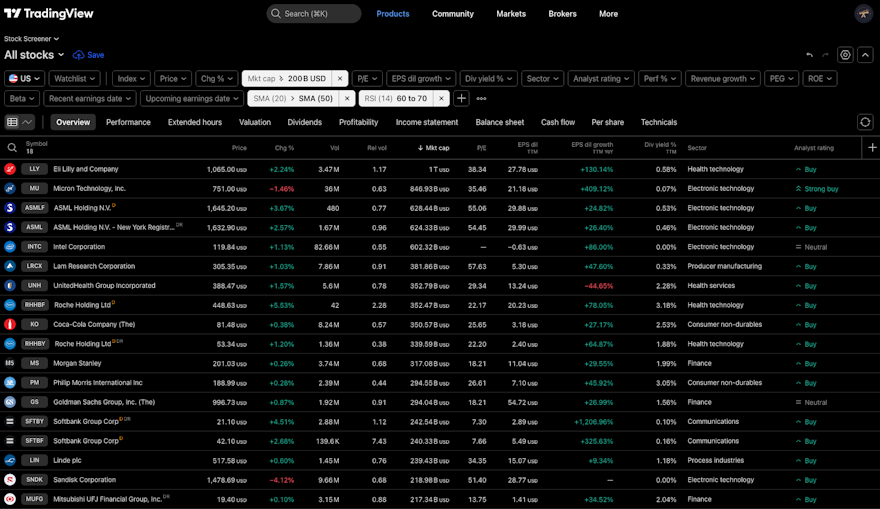
Result: The list reduces from 14,495 to 148 stocks.

Filter by Moving Average (20 SMA > 50 SMA)
- Click the + Add Filter button.
- Search for and select Simple Moving Average.
- Choose Manual Setup.
- Set the condition: 20 SMA Above 50 SMA (both on daily timeframe).

Once you select Simple moving average, you will further options to select the period and timeframe.

Since our condition is to use 20D SMA, select 20 for the period and let the timeframe remain as 1D.
You will also see lots of preset conditions below.

However, we do not have default setup to add 20SMA > 50SMA. Hence, we need to select manual setup

- First drop down is the condition - select Above as we want 20SMA to be above 50SMA
- Second dropdown is what we are comparing the 20SMA with. Here, we can select an absolute value or comparative other parameters.

Selecting Simple Moving Average from the predefined option will further gives us option to select the period and time.

Result: The list further reduces to 89 stocks.

Filter by RSI
To reduce further, lets look for instruments which are gaining momentum by filtering based on RSI values 60 - 70
- Click + Add Filter and search for Relative Strength Index (RSI).
- Select Manual Setup.
- Set the condition: Between 60 and 70.
First step is to add RSI to the filter criteria using + button

Default setup does not have option to filter between two values.

Hence, lets go with manual setup and add the range.
Select the condition between

Set the range from 60 to 70

Note that you can also change the period and timeframe of RSI to be used for filtering.
Result: The final list narrows down to just 18 stocks.

You can continue adding as many filters as needed to refine your search.
Display Options: Table vs Chart View
You can toggle between two viewing modes below the filter bar:

Table View (default) — Shows detailed data in columns.

Click the + button at the end of the columns to add more data fields.

Chart View — Displays the filtered stocks as mini charts. 
You can customize:
- Chart type (Candles, Bars, Line, Area)
- Layout (up to 4x4 grid)
- Time range (1D to ALL)
Useful Operations
Save Your Screener Settings
Click the Save button in the top left (next to the screener name) to save your filter combination for future use.

Add Filtered Stocks to a Watchlist
- Click any row in the table (without opening the symbol).
- Press Ctrl + A to select all stocks.
- Scroll to the bottom of the list to ensure all results are loaded.
- Right-click and choose Add to Watchlist (existing or new).


Limitations of the Stock Screener
Despite its power, the built-in stock screener has limitations. It doesn’t support complex logical conditions (AND/OR combinations).
For advanced screening, TradingView offers pine screener, which works on custom Pine Script logic. However, Pine Screener can only be applied to watchlists.
Best Workflow Recommendation:
- Use the Stock Screener to reduce the universe to 100–1,000 stocks.
- Save them into a watchlist.
- Apply Pine Screener for more sophisticated, logic-heavy filters.